> For the complete documentation index, see [llms.txt](https://docs.digia.tech/llms.txt). Markdown versions of documentation pages are available by appending `.md` to page URLs; this page is available as [Markdown](https://docs.digia.tech/ui-building-blocks/widgets/media-async-widgets/opacity.md).
# Opacity
The Switch widget provides intuitive binary toggle controls for settings and preferences.
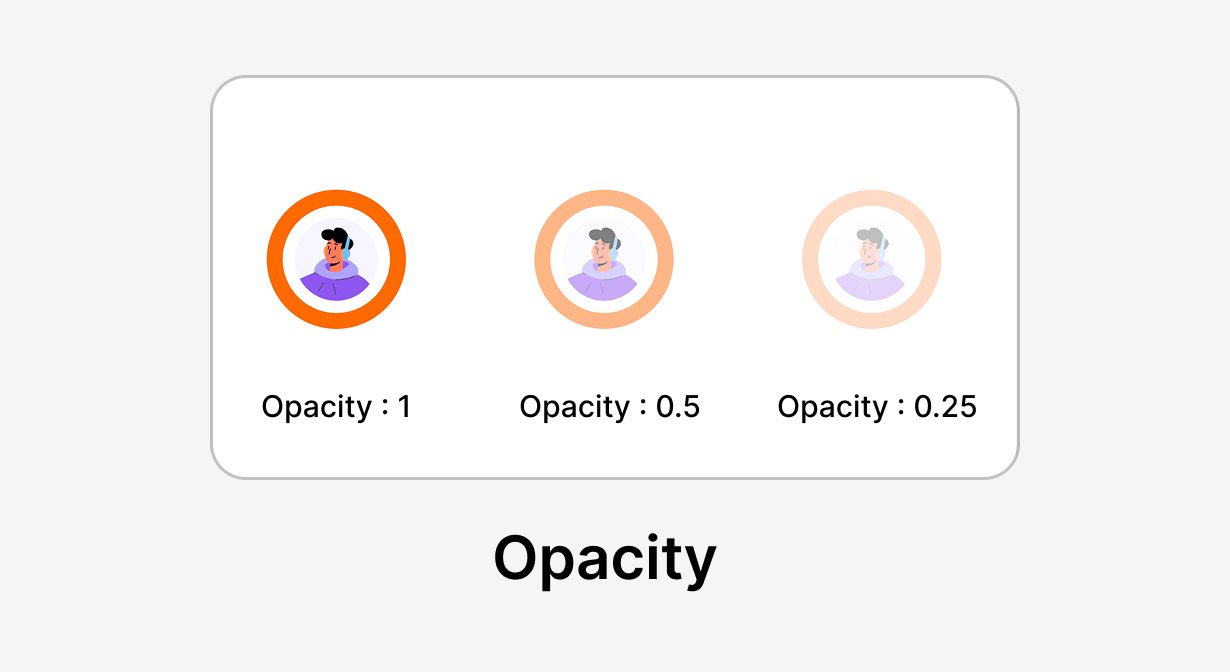
The `Opacity` widget in Flutter is used to control the transparency level of its child widget. It is a fundamental layout widget that allows you to visually fade or hide elements, crucial for creating subtle visual hierarchy, smooth transitions, and dynamic user interfaces.
{% embed url="" %}
Watch this on Youtube:
### Core Concepts
The `Opacity` widget works by inserting a transparent layer between its parent and child, effectively painting the child's content with the specified level of transparency.
1. Rendering vs. Interaction: The `Opacity` widget renders its child transparently, but it still occupies the same space in the layout. More importantly, the widget does not prevent its child from receiving hit-testing events (like taps or gestures) unless the opacity is set to $$ $0.0$ $$.
2. Performance Note: While simple, changing the opacity requires a save-layer operation during rendering, which can be computationally expensive if applied to very complex widgets.
### Properties
The `Opacity` widget has a minimal set of properties focused solely on transparency control and semantics.
| Property | Description |
| ------------------------ | ----------------------------------------------------------------------------------------------------------------------------------------- |
| `opacity` | The transparency level of the child. `1.0` = fully visible, `0.0` = fully invisible. Must be between `0.0` and `1.0`. |
| `alwaysIncludeSemantics` | If `true`, the child stays in the accessibility/semantics tree even when fully transparent (`opacity = 0.0`). Helpful for screen readers. |
### Child of Opacity
| Slot | Description |
| ------- | ----------------------------------------------------------------------------------------------------------------------------- |
| `child` | The single child widget whose opacity will be controlled. It keeps its layout space even when partially or fully transparent. |
### Layout & Behaviour
The `Opacity` widget always takes the full size required by its `child`.
**`alwaysIncludeSemantics`**
This property is critical for accessibility.
* If `alwaysIncludeSemantics` is set to `false` (default), when `opacity` is $0.0$ , the child is invisible *and* is removed from the accessibility tree. This means screen readers will ignore the content.
* If set to `true`, even when `opacity` is $0.0$, the child's information remains in the accessibility tree, allowing screen readers to announce the content (e.g., a hidden label or image description).
#### Default Properties
The Opacity widget supports all [Default Properties](/ui-building-blocks/widgets/default-properties.md).
### Use Cases
Use **Opacity** when you want to:
* **Fade UI elements in/out visually**
* Dim a background while showing a dialog or overlay
* Fade out a button or label instead of removing it abruptly
* **Create subtle visual hierarchy**
* Make secondary or disabled content look less prominent
* Soften background elements behind primary content
* **Prep or transition UI states**
* Hide something visually but keep its layout in place to avoid jumps
* Combine with animations (or `AnimatedOpacity`) for smooth transitions
* **Accessibility-related visibility**
* Keep content visually hidden but still accessible to screen readers (with `alwaysIncludeSemantics`)