# Stack

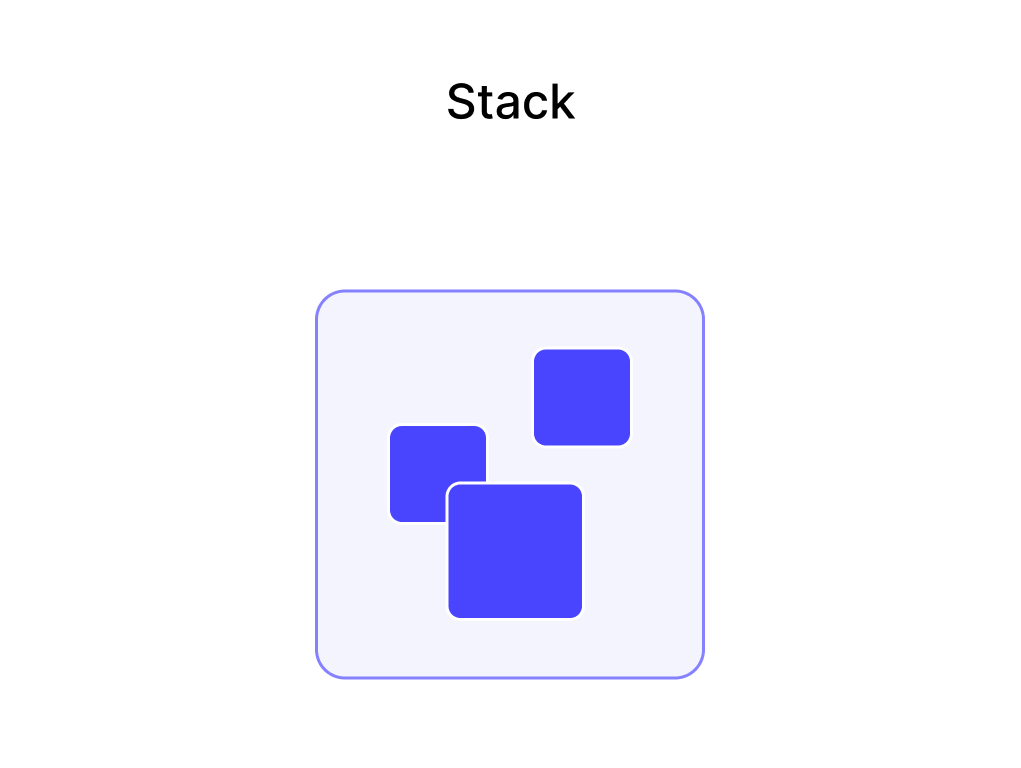
<figure><img src="https://3626461507-files.gitbook.io/~/files/v0/b/gitbook-x-prod.appspot.com/o/spaces%2FbhApDTL7kHrXte2TTtjs%2Fuploads%2Fgit-blob-70f5ddd538b3738b76e9033fc854ae7d5d1a54a4%2Fstack_hero_image.jpg?alt=media" alt="A hero image illustrating the Stack widget with multiple layers, like an image with text and an icon on top."><figcaption><p>The Stack widget is essential for creating complex, layered user interfaces.</p></figcaption></figure>

The **Stack** widget is a powerful layout widget that allows you to place widgets on top of each other, creating layered and overlapping UIs. It arranges its children in a back-to-front order, with the first child being at the bottom and the last child at the top.

{% embed url="<https://www.youtube.com/watch?v=nG6iYEcuSJs>" %}

Watch this on Youtube: <https://www.youtube.com/watch?v=nG6iYEcuSJs>

#### Adding a Stack Widget

The Stack widget is located in the **Layout Elements** section of the Widget Palette. Once added, you can add child widgets to it and configure its properties from the **Widget Properties Panel**.

### Core Concept: Layering and Positioning

The primary purpose of a Stack is to layer widgets along the Z-axis (depth). Children of a Stack can be either **non-positioned** or **positioned**, which determines how they are placed.

* **Stacking Order**: Children are painted in the order they appear in the `children` list. The first widget is at the bottom, and subsequent widgets are painted on top of it.
* **Non-Positioned Children**: By default, a child is non-positioned. Its alignment is controlled by the parent Stack's `Alignment` property, and its size is determined by the `Fit` property.
* **Positioned Children**: A child becomes "positioned" when you set one or more of its position properties (`top`, `bottom`, `left`, `right`) in the **Children Position** section of the Stack's properties. This gives you precise control over its location and size relative to the Stack's boundaries, overriding the Stack's `Alignment` and `Fit` for that specific child.

<figure><img src="https://3626461507-files.gitbook.io/~/files/v0/b/gitbook-x-prod.appspot.com/o/spaces%2FbhApDTL7kHrXte2TTtjs%2Fuploads%2Fgit-blob-fc0120c8d787fec633e19bb2b30d71f5b287f315%2Fstack.jpg?alt=media" alt=""><figcaption><p>The Stack widget enables complex, layered user interfaces.</p></figcaption></figure>

***

### Properties

#### Stack Properties

<table><thead><tr><th width="176.25390625">Property</th><th>Description</th></tr></thead><tbody><tr><td><code>Alignment</code></td><td>Controls the alignment of all <strong>non-positioned</strong> children within the Stack's bounds. The default is <code>TopStart</code> (top-left corner).</td></tr><tr><td><code>Fit</code></td><td>Determines how to size the <strong>non-positioned</strong> children. Options are: <code>Loose</code> (children can be smaller than the Stack), <code>Expand</code> (children are forced to be as big as the Stack), and <code>Passthrough</code> (children's constraints are passed through from the Stack's parent).</td></tr><tr><td><code>Clip Behavior</code></td><td>Defines whether children are allowed to paint outside the Stack's boundaries. Options include <code>HardEdge</code> (content is clipped), and <code>None</code> (content is not clipped).</td></tr></tbody></table>

***

### Positioning Children

The key to creating precisely arranged layouts within a Stack is the **Children Position** section in the widget's property panel. This section lists all direct children, allowing you to set a `Position` for each one by defining the properties below.

#### Position Properties

<table><thead><tr><th width="176.25390625">Property</th><th>Description</th></tr></thead><tbody><tr><td><code>Top</code></td><td>The distance to offset the child from the top edge of the Stack.</td></tr><tr><td><code>Bottom</code></td><td>The distance to offset the child from the bottom edge of the Stack.</td></tr><tr><td><code>Left</code></td><td>The distance to offset the child from the left edge of the Stack.</td></tr><tr><td><code>Right</code></td><td>The distance to offset the child from the right edge of the Stack.</td></tr></tbody></table>

#### Positioning Behaviors

By combining the position properties, you can achieve several distinct layout behaviors.

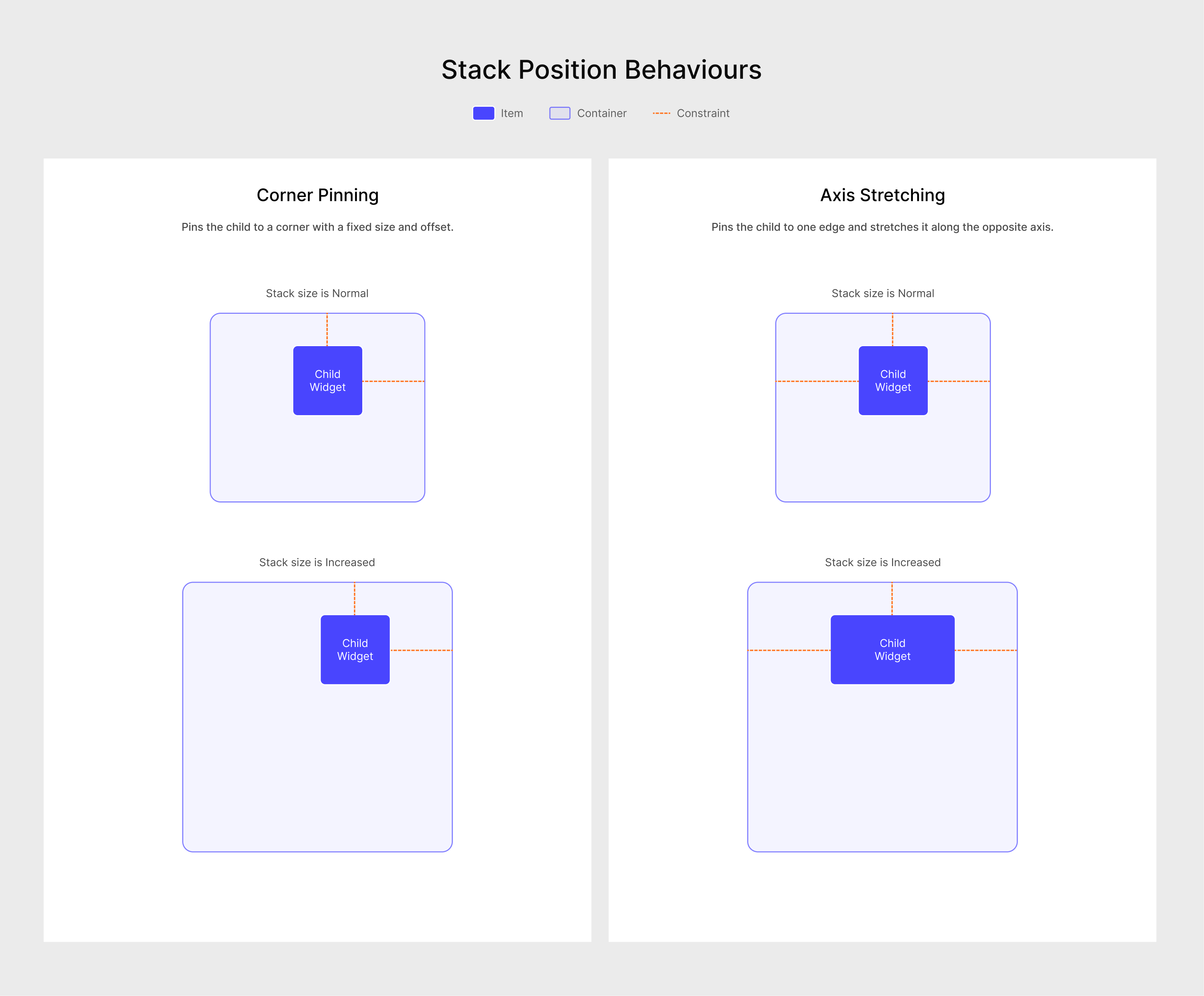
<table><thead><tr><th width="200">Behavior</th><th width="250">Properties Set</th><th>Description &#x26; Use Case</th></tr></thead><tbody><tr><td><strong>Non-Positioned</strong></td><td>None (<code>top</code>, <code>left</code>, <code>right</code>, <code>bottom</code> are all unset).</td><td>The child's position is determined by the parent Stack's <code>Alignment</code> property. The child retains its natural size, unless the Stack's <code>Fit</code> is <code>Expand</code>.</td></tr><tr><td><strong>Corner Pinning</strong></td><td>Two non-opposing properties (e.g., <code>top</code> and <code>left</code>, or <code>bottom</code> and <code>right</code>).</td><td>Pins the child to a specific corner. The child maintains its intrinsic size and stays at a fixed offset from that corner, even if the Stack resizes.</td></tr><tr><td><strong>Axis Stretching &#x26; Aligning</strong></td><td>Two opposing properties (e.g., <code>left</code> and <code>right</code>, or <code>top</code> and <code>bottom</code>).</td><td>The child stretches along one axis and is positioned on the other axis by the parent Stack's <code>Alignment</code> property. <strong>Use Case:</strong> A header that stretches across the top of a card (by setting <code>top</code>, <code>left</code>, and <code>right</code>).</td></tr><tr><td><strong>Edge Pinning &#x26; Axis Stretching</strong></td><td>Three properties (e.g., <code>top</code>, <code>left</code>, and <code>right</code>).</td><td>Pins the child to one edge and stretches it along the opposite axis. For example, setting <code>top</code>, <code>left</code>, and <code>right</code> pins the child to the top edge and forces it to stretch horizontally.</td></tr><tr><td><strong>Full Stretch</strong></td><td>All four properties (<code>top</code>, <code>left</code>, <code>right</code>, and <code>bottom</code>).</td><td>Forces the child to stretch in both directions, filling the space defined by the four offsets. The child will grow and shrink dynamically as the parent Stack resizes. <strong>Use Case:</strong> A background image that should always fill the entire Stack.</td></tr></tbody></table>

<figure><img src="https://3626461507-files.gitbook.io/~/files/v0/b/gitbook-x-prod.appspot.com/o/spaces%2FbhApDTL7kHrXte2TTtjs%2Fuploads%2Fgit-blob-20fc606a30beeeea6e43b3a6a6c21e533b79da3c%2Fstack_position_behaviours.jpg?alt=media" alt="A diagram explaining how the top, right, bottom, and left properties work to place a child within a Stack."><figcaption><p>The <code>Position</code> properties give you precise control over a child's layout behavior inside a Stack.</p></figcaption></figure>

#### Best Practices for Positioning

* **Avoid Over-Constraining**: You usually don't need to set all four properties (`top`, `bottom`, `left`, `right`). For example, to pin a widget to the top-left, you only need to set `top` and `left`. Setting all four can sometimes lead to unexpected layout behavior if the parent Stack's size changes.
* **Use `Alignment` for Simplicity**: For simple layouts where all children are aligned the same way (e.g., centered), it's easier to use a non-positioned child and set the Stack's `Alignment` property. Reserve positioning for widgets that need a unique location.
* **Responsive Design**: Be mindful of how your positioned children will behave on different screen sizes. Using a combination of `top`/`left` and `bottom`/`right` can help, but always test your layouts.

***

### Children of Stack

| Slot       | Description                                                                                                                                                     |
| ---------- | --------------------------------------------------------------------------------------------------------------------------------------------------------------- |
| `children` | The child widgets that are layered on top of each other. The first child is at the bottom, and subsequent children are stacked on top in the order they appear. |

***

### Default Properties

The Stack widget supports all [default-properties](https://docs.digia.tech/ui-building-blocks/widgets/default-properties "mention").

***

### Use Cases

The **Stack** widget lets you **place widgets on top of each other** (z-axis), instead of just side-by-side or top-to-bottom.

Use **Stack** when you want to:

* **Overlay content**
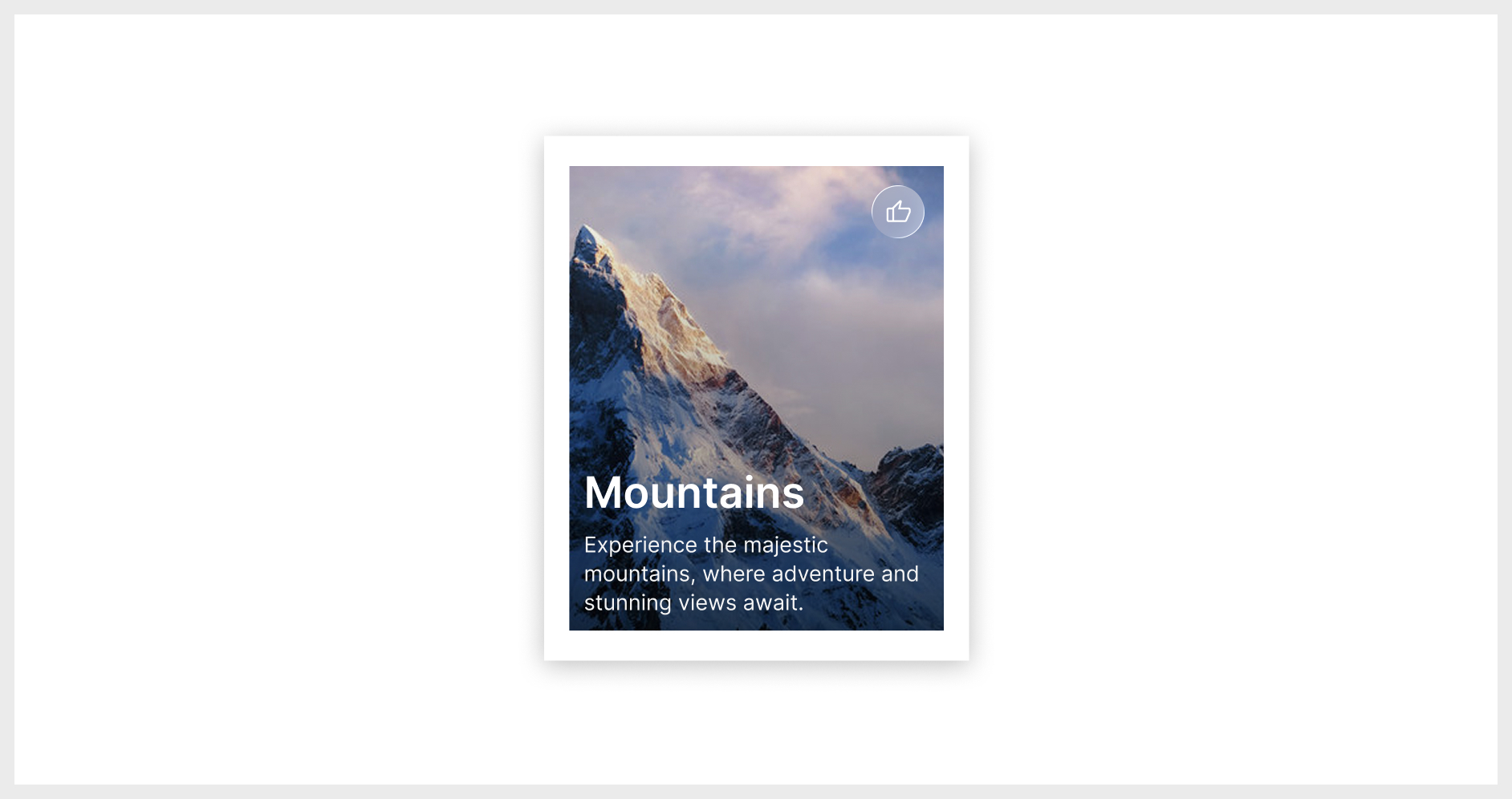
  * Text or gradient overlay on top of an image (e.g., banner with title on image)
  * Badge on a product image (SALE, NEW, % OFF)
  * Online/offline indicator dot on a profile avatar
* **Floating elements**
  * Floating action button over content
  * Positioned icons/buttons on the corners of a card or image
* **Custom layered UI**
  * Background decoration behind main content
  * Progress or status layer on top of another widget