# Container

<figure><img src="https://3626461507-files.gitbook.io/~/files/v0/b/gitbook-x-prod.appspot.com/o/spaces%2FbhApDTL7kHrXte2TTtjs%2Fuploads%2Fgit-blob-86650efd964f1f51e8656be86767f73b90d33f27%2Fcontainer_hero_image.jpg?alt=media" alt="A hero image illustrating a Container widget with various styling properties like padding, border, and shadow."><figcaption><p>A powerful widget for styling, sizing, and positioning other widgets.</p></figcaption></figure>

The **Container** is a fundamental layout widget that can hold a single child widget. It allows you to apply advanced styling and sizing rules that go beyond the standard `Default Properties`.

It is one of the most versatile widgets for building complex user interfaces.

{% embed url="<https://www.youtube.com/watch?v=m0iw3EbtAxk>" %}

Watch this on Youtube: <https://www.youtube.com/watch?v=m0iw3EbtAxk>

{% hint style="info" %}
Our Container widget works exactly like Flutter's `Container` widget. For an in-depth technical understanding, you can refer to the official Flutter Container documentation.
{% endhint %}

### Core Concept: Layout Behavior

A Container's size on the screen is determined by a set of rules based on its properties and its child. Understanding this behavior is key to mastering layout.

| Has Child? | Dimensions or Constraints Set? | Alignment Set? | Parent's Constraints | Container's Behavior                                                          |
| ---------- | ------------------------------ | -------------- | -------------------- | ----------------------------------------------------------------------------- |
| No         | No                             | No             | Unbounded            | Tries to be as small as possible.                                             |
| No         | Yes                            | No             | Any                  | Tries to be as small as possible given its own and parent's constraints.      |
| No         | No                             | No             | Bounded              | Expands to fit the parent's constraints.                                      |
| Yes        | Any                            | Yes            | Unbounded            | Sizes itself to fit around the child.                                         |
| Yes        | Any                            | Yes            | Bounded              | Expands to fit the parent and positions the child according to the alignment. |
| Yes        | No                             | No             | Any                  | Passes constraints from parent to child and matches the child's size.         |

***

### Properties

#### Layout & Sizing

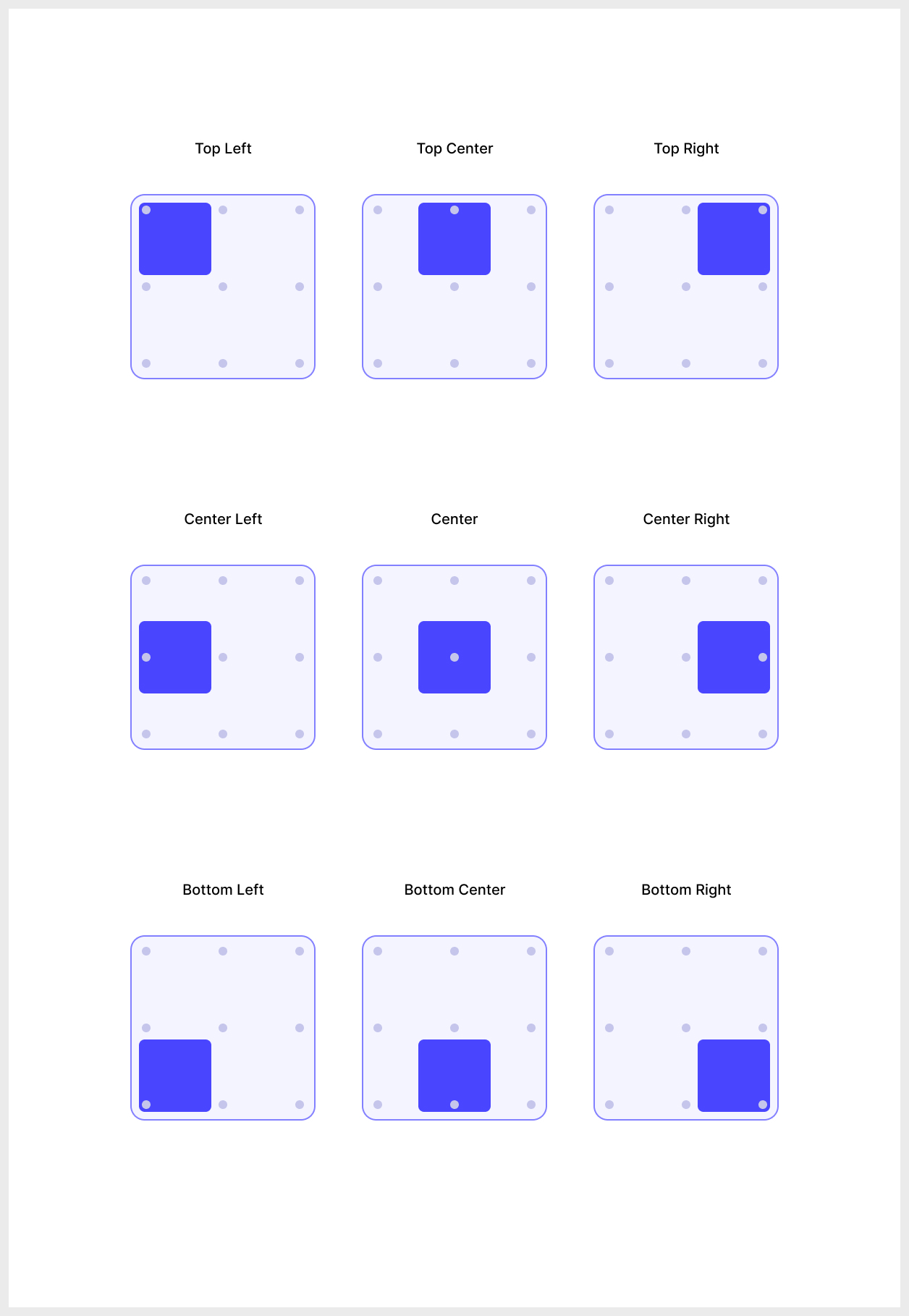
<table><thead><tr><th width="176.25390625">Property</th><th>Description</th></tr></thead><tbody><tr><td><code>Width</code> / <code>Height</code></td><td>The fixed dimensions of the container.</td></tr><tr><td><code>Padding</code></td><td>The space between the container's border and its child widget.</td></tr><tr><td><code>Margin</code></td><td>The space around the outside of the container, separating it from other widgets.</td></tr><tr><td><code>Child Alignment</code></td><td>Aligns the child widget within the container (e.g., <code>Top Left</code>, <code>Center</code>, <code>Bottom Right</code>).</td></tr></tbody></table>

<figure><img src="https://3626461507-files.gitbook.io/~/files/v0/b/gitbook-x-prod.appspot.com/o/spaces%2FbhApDTL7kHrXte2TTtjs%2Fuploads%2Fgit-blob-797d1f2fad883c2c340c59d38bc52129e981a6cd%2Fcontainer_child_alignment.jpg?alt=media" alt="An illustration showing how the Child Alignment property positions a child widget within a Container."><figcaption><p>Use <code>Child Alignment</code> to position a child within the Container's bounds.</p></figcaption></figure>

#### Constraints

These properties allow you to define a flexible size range for the container.

<table><thead><tr><th width="176.25390625">Property</th><th>Description</th></tr></thead><tbody><tr><td><code>Min Width</code> / <code>Min Height</code></td><td>The minimum size the container can shrink to.</td></tr><tr><td><code>Max Width</code> / <code>Max Height</code></td><td>The maximum size the container can expand to.</td></tr></tbody></table>

#### Appearance

<table><thead><tr><th width="176.25390625">Property</th><th>Description</th></tr></thead><tbody><tr><td><code>Color</code></td><td>The solid background color of the container.</td></tr><tr><td><code>Gradient</code></td><td>A color gradient for the background. This will be drawn on top of the <code>Color</code>.</td></tr><tr><td><code>Box Shape</code></td><td>The shape of the container. Options are <code>Rectangle</code> or <code>Circle</code>.</td></tr><tr><td><code>Border</code></td><td>Defines the border style, width, and color.</td></tr><tr><td><code>Border Radius</code></td><td>Rounds the corners when <code>Box Shape</code> is <code>Rectangle</code>.</td></tr><tr><td><code>Elevation</code></td><td>The z-axis elevation, used to create a shadow effect.</td></tr><tr><td><code>Shadow</code></td><td>A list of shadow effects to apply, allowing for complex, layered shadow designs.</td></tr></tbody></table>

***

### Container vs. Default Properties

The `Container` widget offers a superset of the styling properties found in `Default Properties`.

* **Shared Properties**: `Width`, `Height`, `Padding`, `Margin`, `Background Color`, `Border`, `Border Radius`.
* **Container-Only Properties**: `Gradient`, `Shadow`, `Elevation`, `Constraints` (Min/Max Width/Height), `Child Alignment`, and `Box Shape`.

This makes the Container a powerful tool for creating custom "cards," decorated boxes, and other complex layout elements.

***

### Default Properties

The Container widget supports the following sections of [default-properties](https://docs.digia.tech/ui-building-blocks/widgets/default-properties "mention"):

**Interactions**

**Alignment**

**Visibility**

### Use Cases

Use a **Container** when you need a **box that styles and positions other widgets**.

* **Group content**\
  Wrap text, icons, rows, or columns into a single block (like a card or section).
* **Add styling**\
  Give something a background color, border, radius, or shadow.
* **Control spacing & size**\
  Add padding, margin, fixed width/height, and alignment around a child.
* **Clickable areas**\
  Make a whole row/section feel like one tappable block (with gesture/tap outside).