> For the complete documentation index, see [llms.txt](https://docs.digia.tech/llms.txt). Markdown versions of documentation pages are available by appending `.md` to page URLs; this page is available as [Markdown](https://docs.digia.tech/ui-building-blocks/design-system/colors.md).
# Colors
## Colors
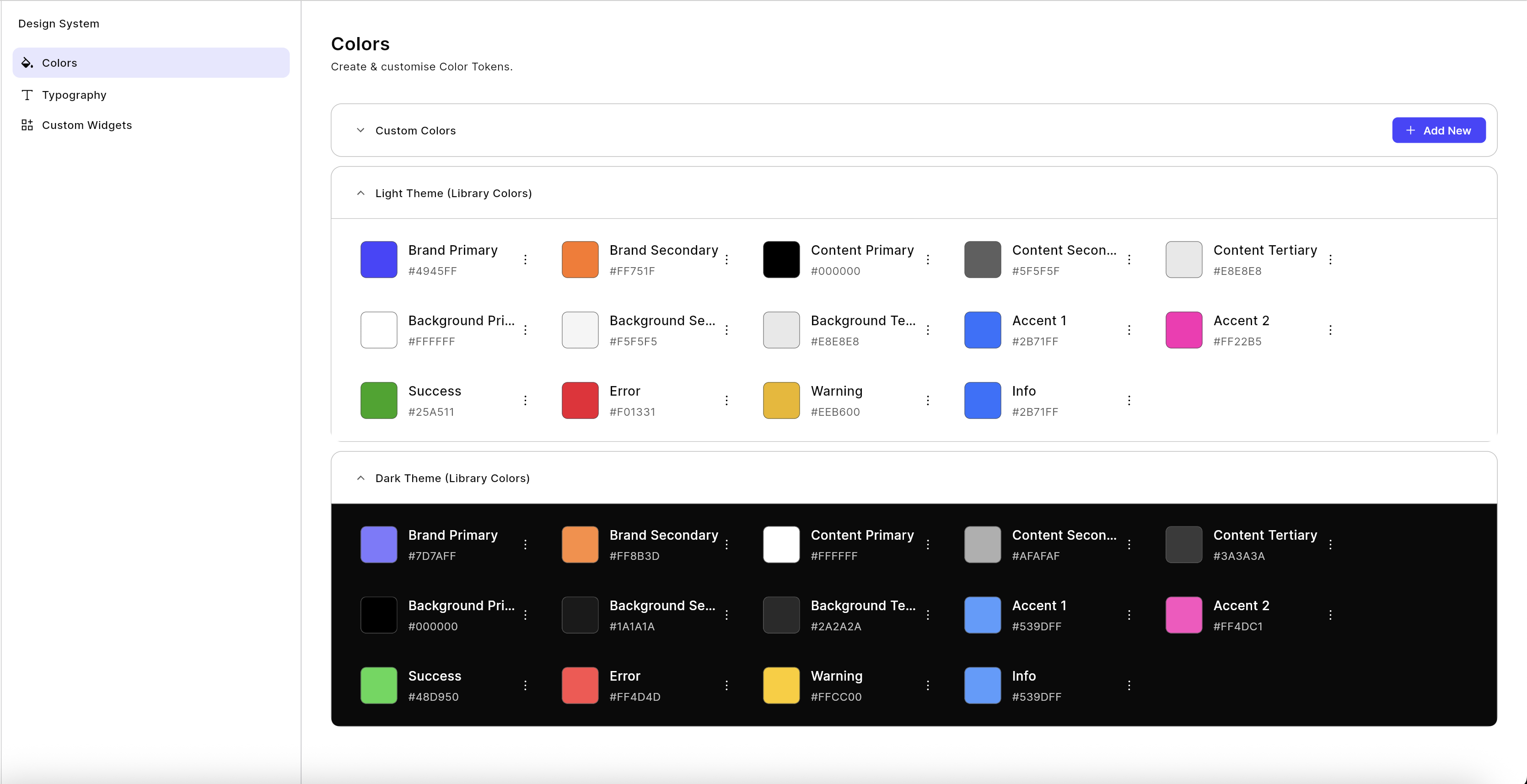
The **Colors** section allows you to create, customize, and manage the color tokens used across your application.
### Custom Colors
You can add your own **Custom Colors** by clicking the **Add New** button. These colors can be used anywhere in your app, alongside the default palette.
### Light & Dark Theme Palettes
Your app comes with a predefined **Light Theme** and **Dark Theme** color palette.\
Each theme includes colors for:
* **Brand** (Primary & Secondary)
* **Content** (Primary, Secondary, Tertiary)
* **Background** (Primary, Secondary, Tertiary)
* **Status** (Success, Error, Warning, Info)
* **Accents**
You can switch between light and dark themes in your app, and customize both to fit your brand.
### Editing Colors
To modify a color:
1. Click on the color box.
2. Select a new color using the color picker, or enter a hex code.
### More Options
Clicking the **three dots** menu next to a color provides options to:
* **Copy Color Token** – Use this token name in expressions and styling references.
* **Copy Hex Code** – Quickly copy the color’s hex value.
These tools help ensure design consistency and make it easier to apply colors programmatically.
### Using Colors in Components
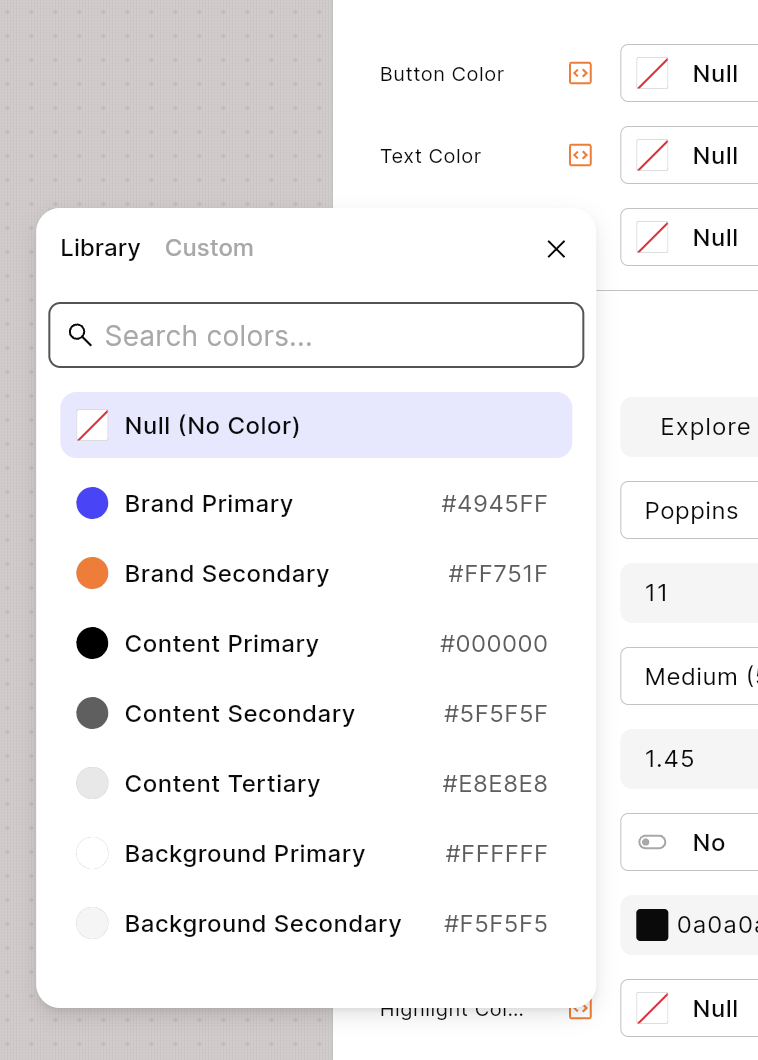
When configuring components (e.g., button text, background), you can:
* Choose from the **predefined color tokens** in the library.
* Set a **custom inline color** directly for that specific element.
### Light/Dark Mode Toggle
At the top of the canvas, you can toggle between **Light** and **Dark** modes using the ��**/**☾ **icon** .
> **Note:** This toggle only affects components styled with **tokenized colors**. Inline colors are fixed and will not adapt when switching themes.